Staff Members & Assistant Coaches
Coachbox supports multi-coach teams. You can invite other coaches, dieticians, physiotherapists, and other staff members to collaborate on your athletes' training.
Staff member roles
When adding a team member, you choose their role:
| Role | Description |
|---|---|
| Coach | Full coaching access: can plan workouts, view data, manage athletes, and use the library |
| Assistant Coach | Access to assigned athlete data |
| Dietician | Access to assigned athlete data |
| Physiotherapist | Access to assigned athlete data |
| Sports doctor | Access to assigned athlete data |
| Exercise physiologist | Access to assigned athlete data |
| Osteopath | Access to assigned athlete data |
| Psychologist | Access to assigned athlete data |
| Administrative Staff | Limited access: calendar and statistics only |
| Parents | Limited access: calendar and statistics only |
| And more... | Chiropractor, Bikefitter, Podiatrist, Doctor, Other |
Only the Coach account type gets the full coach role. Every other account type, including Assistant Coach, joins the team as a staff member: they work through the per-athlete access rights described below and do not have the library with the team's shared folder in their calendar.
The account type cannot be changed afterwards: the edit screen only covers profile details. To turn a staff member into a full coach, disconnect them (see below) and add them again with account type Coach.
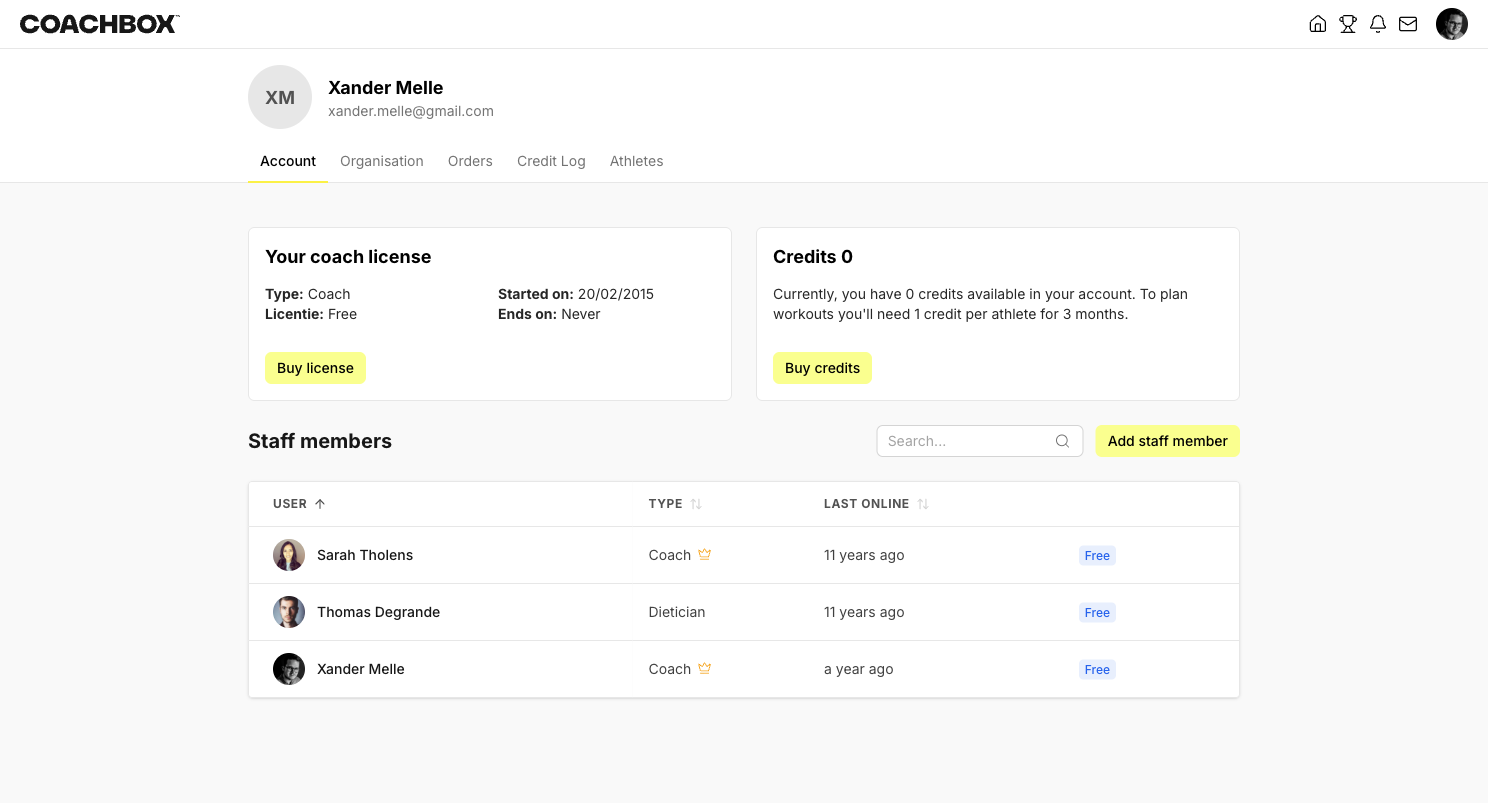
Adding a staff member
Only team administrators can add new staff members.
- Click on your profile picture in the top right corner
- Go to the Account tab
- Click Add staff member
- Fill in:
- E-mail: the person's email address
- First Name and Last Name
- Account type: select their role from the dropdown
- Organization administrator: optionally grant admin rights
- Click Add
If the person does not yet have a Coachbox account, they will receive an invitation email.
Managing user rights
After a staff member has joined, you can control exactly which athletes they can access and which modules they can use.
- Go to the Account tab
- Click the ⋮ menu next to the staff member
- Select User rights
The rights table shows a grid of athletes × modules. For each athlete, you can toggle access to:
- Calendar: view and manage the training schedule
- Milestones: view and manage milestones
- Zones: view and manage training zones
- Testing: access test results
- Races: view race calendar
- Annual planning: view and edit the annual plan
- Statistics: access training analytics
Staff members with the "Administrative Staff" or "Parents" role only have access to Calendar and Statistics.
Main coach
The shield icon marks a coach as the "main coach" for an athlete. The main coach has full access to all modules for that athlete. Team administrators automatically get main coach status.
Adding coaches to an existing athlete
If you forgot to add a coach when creating an athlete, you can fix it from the athlete instead. This route works the other way around: you pick one athlete and select which coaches get access.
- Go to the Athletes tab
- Click the ⋮ menu next to the athlete
- Select User rights
- Click a coach's name to tick all modules at once, or tick the modules individually
- Click Save
If the same coach needs access to several athletes, use the Account tab route above instead: it lists all athletes in a single grid.
The User rights option is only visible to team administrators and to the main coach of that athlete. Other coaches do not see the menu and need to ask a team administrator to make the change.
Coach assignment does not happen under Edit profile: that screen only holds the athlete's profile details. To see who currently has access, open the athlete profile and check the Linked to tab.
Organization administrator
Granting someone the Organization administrator role gives them elevated permissions:
- Manage all athlete access rights
- Modify organization information
- View all invoices and the credit log
- Manage zone templates
- Add and remove team members
Removing a staff member
- Go to the Account tab
- Click the ⋮ menu next to the staff member
- Select Disconnect user
- Confirm the action
Good to know
- Only team administrators can add, remove, or modify rights for other staff members.
- A staff member's access can be as broad or as narrow as needed: you control it per athlete and per module.
- New staff members start with no athlete access by default. You need to explicitly grant rights after they join.