Adding Athletes
To start coaching an athlete in Coachbox, you first need to add them to your account. The athlete will receive an invitation email to join your team.
How to add an athlete
There are two ways to add an athlete:
From the calendar
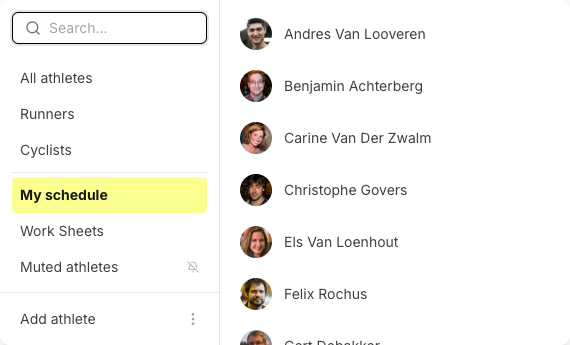
- Click on the athlete picker (your name in the top left)
- Click Add athlete at the bottom of the sidebar
From the Athletes page
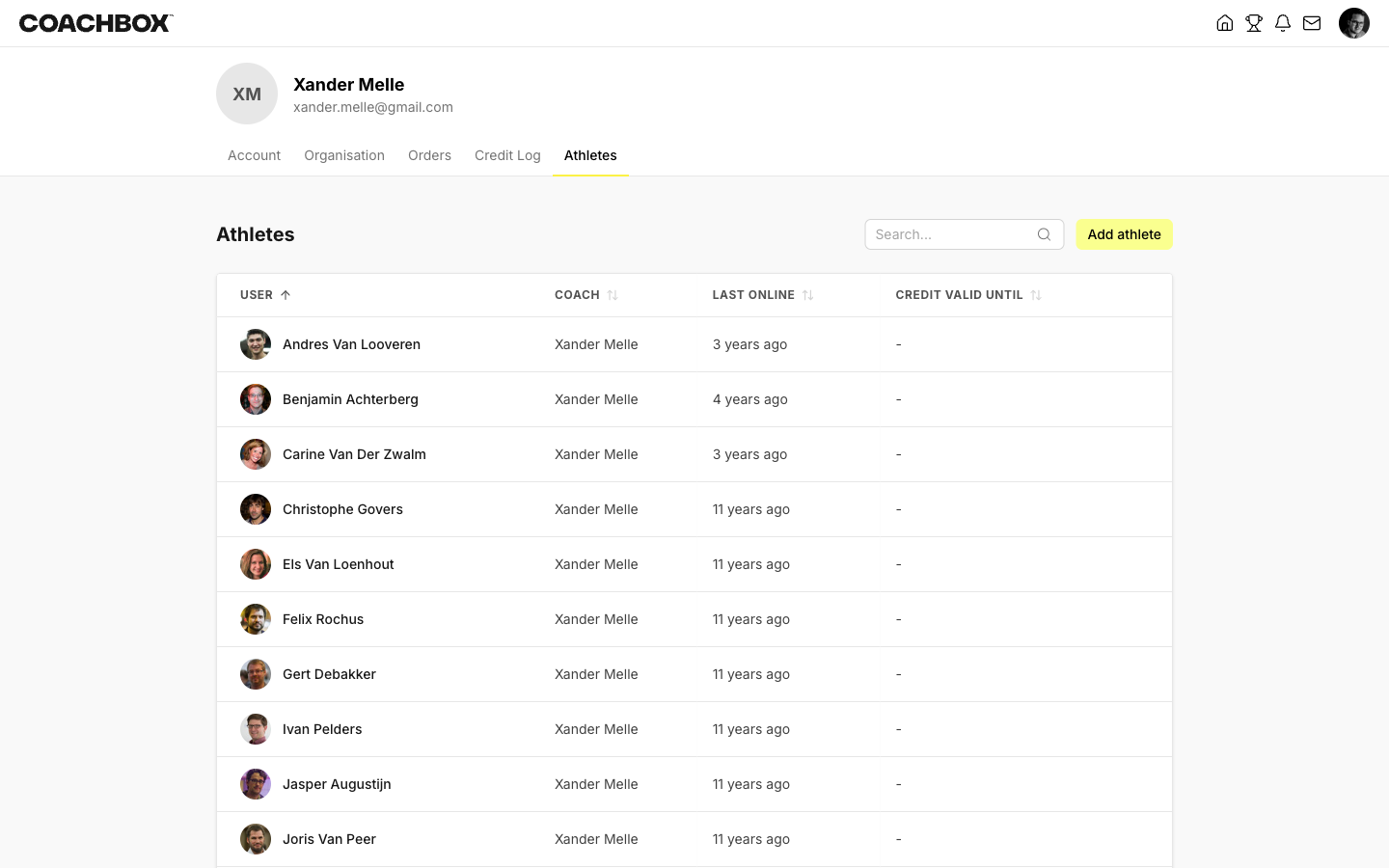
- Click on your profile picture in the top right corner
- Go to the Athletes tab
- Click Add athlete
Filling in the invitation form
After clicking Add athlete, a dialog opens where you enter the athlete's details:
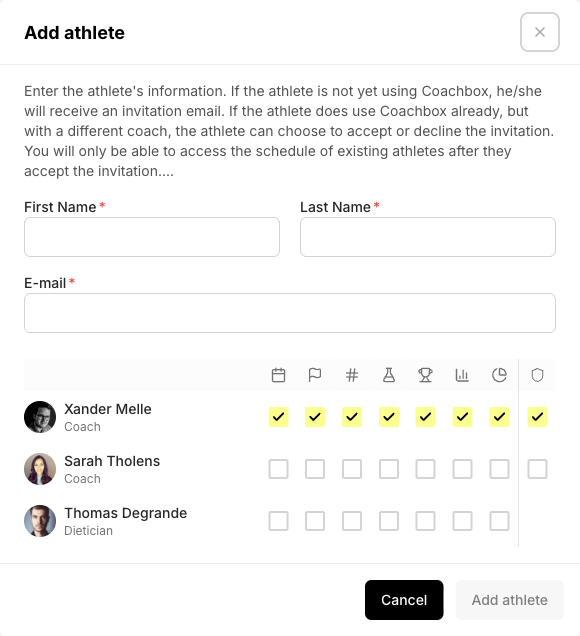
- First Name: The athlete's first name
- Last Name: The athlete's last name
- E-mail: The email address where the invitation will be sent
Coach access rights
If your team has multiple coaches or staff members, a permissions table is shown below the form. Here you can select which team members get access to the new athlete's data, and for which modules:
- Calendar: View and manage the athlete's training schedule
- Milestones: View and manage goals and milestones
- Zones: View and manage training zones
- Testing: Access test results and protocols
- Races: View race calendar and results
- Annual planning: View and edit the annual training plan
- Statistics: Access training statistics and analytics
Click Add athlete to send the invitation.
What happens after the invitation?
After you click Add athlete, the athlete receives an invitation email. What you can already do depends on whether the athlete is new to Coachbox:
- New to Coachbox: the athlete creates an account with a password. You can start working in the new profile right away (planning workouts, scheduling tests, building the planning), even before the athlete has activated their account.
- Already on Coachbox: the athlete already uses Coachbox (with another coach, or self-coached) and must accept your invitation first. Only then can you work in their schedule. This protects the athlete's privacy, as otherwise you could simply access an existing schedule.
Adding multiple athletes
After a successful invitation, you can click Add another athlete to immediately invite the next athlete without closing the dialog.
Resending an invitation
If an athlete did not receive the invitation email, you can resend it:
- Open the athlete picker
- Click the three dots next to the athlete
- Choose "Show profile"
- Click "Resend invitation"
⚠️ This option is only visible for athletes who have not yet accepted their invitation.
Invitation email not received
If your athlete is not receiving the invitation email, check the following:
- Spam folder: ask the athlete to check their spam or junk mail folder. Invitation emails sometimes end up there, depending on the email provider.
- Email address: verify that the address was entered correctly. A typo is easy to miss.
- Resend: follow the steps above to send a new invitation.
Still not working? Contact support and include the athlete's email address.
Good to know
- You can view all your athletes and their status on the Athletes tab in your account settings.