Notifications
Coachbox keeps you informed about what happens with your athletes and their training through real-time notifications.
Accessing notifications
Click the bell icon in the top right navigation bar to see recent notifications in a popup. Click Show all to open the full notifications page.
Unread notifications are indicated by a badge on the bell icon.
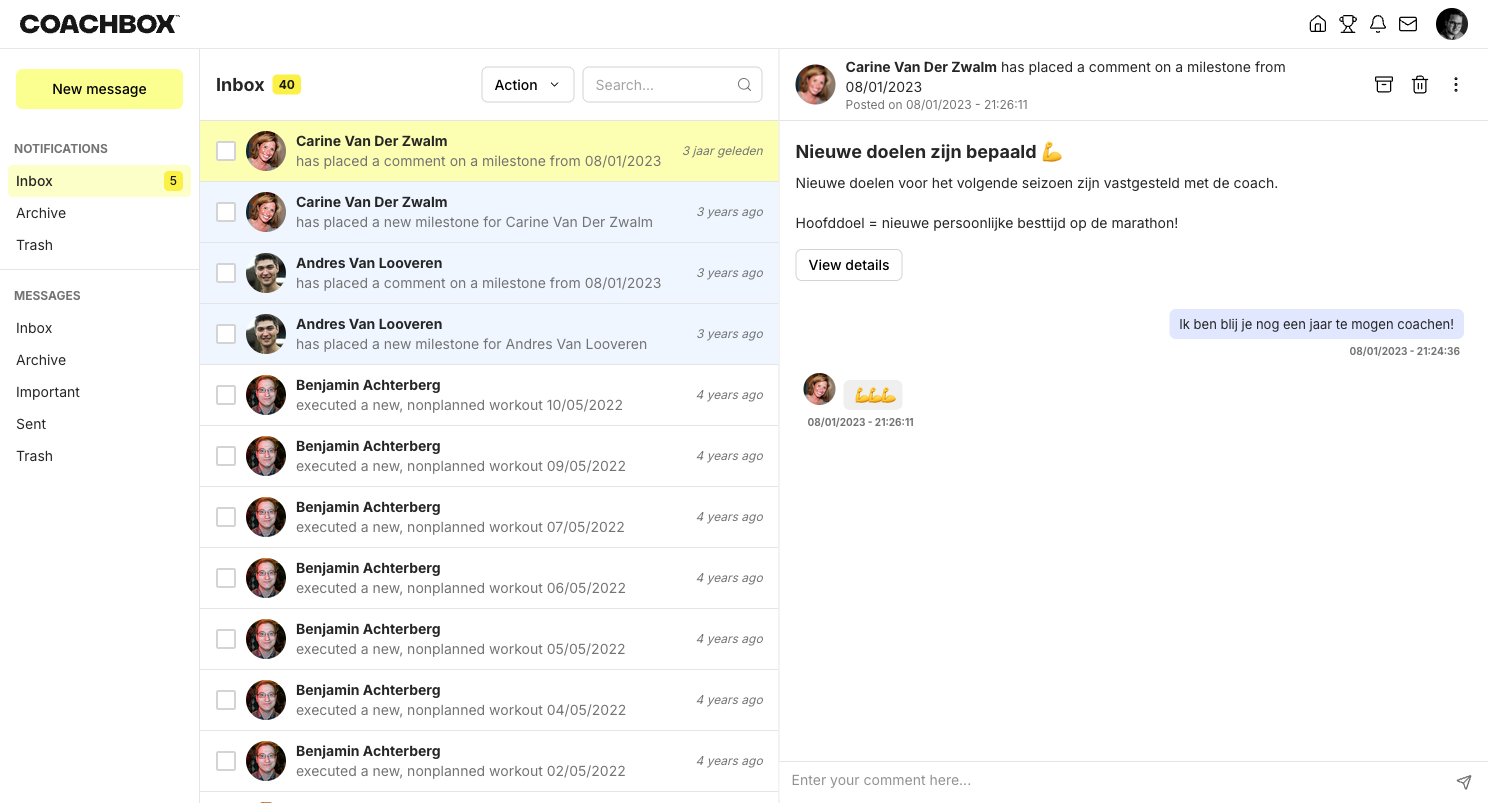
Notification types
You receive notifications for various events:
- Workout executed: An athlete completed a planned workout
- Workout not executed: A planned workout was not performed
- Unplanned workout: An athlete recorded a workout that was not on the plan
- Workout moved: A workout was rescheduled to a different date
- Workout deviation: A completed workout deviates more than 20% from the planned values
- New message: You received a message from an athlete or coach
- New comment: Someone commented on a workout, message, note, or metric
- New note: A note was added to the calendar
- New metric: A metric entry was created
- New milestone: A milestone was reached
- New race: A race was added
- Zone changes: Training zones were created or updated
- Birthday: An athlete's birthday
- Gear distance: Equipment has reached its distance threshold
- Sync completed: One of your own workouts was synced from a connected device (Garmin, Wahoo, Polar, etc.). You only get this for workouts on your own schedule, never for your athletes'.
- Missing RPE or feeling: A reminder half an hour after one of your own workouts synced, if you have not yet filled in RPE or feeling for it. Once you fill them in for the workout that synced last, the reminder no longer asks about older workouts. You also only get this for your own schedule, never for your athletes' workouts. If you do not train with Coachbox yourself or do not want the reminder, switch the type off in the notification settings. To also stop the question the app shows after a synced workout, switch off Ask for RPE and feeling after a workout, under Settings in the app or Preferences on the web. That setting switches the reminder off with it, and back on when you turn it on again.
Folders
Notifications are organized into three folders:
- Inbox: New and unread notifications
- Archive: Notifications you have archived
- Trash: Deleted notifications
Use the Action dropdown to move notifications between folders or to mark them as read/unread.
Quick actions from the popup
In the notifications popup, each row has a three-dot menu. Use it to move a notification to another folder, mark it as read or unread, or move it to the trash, without opening the full notifications page first.
Viewing a notification
Click on a notification to see its details in the right panel. Depending on the type, you can:
- View the workout, note, or metric details
- Edit the related workout
- Analyse the workout data
- Go to calendar to see the athlete's schedule
- Send a message to reply directly
Flagging notifications
Click the flag icon in a notification's detail pane to add a flag, optionally with a note. This collects the notifications you want to revisit into a single overview.
Notification settings
Every notification appears in Coachbox itself. On top of that you choose two extra channels per type: email, and a push notification on your phone.
- Click on your profile picture in the top right corner
- Go to Settings → Notifications
- Toggle each notification type on or off
- Optionally tick E-mail and Push for the types you want to reach you elsewhere
Click a column header to switch that whole column on or off at once.
Disabling a notification type in-app stops it from being created at all, so you receive nothing for it on any channel. Email and push only work for types that are on.
The sync notification and the missing RPE or feeling reminder are the exceptions on the email side: they have no email box, because one mail per synced workout would flood your inbox.
Push notifications on your phone
Coachbox supports push notifications to Coachbox Mobile, our app for iOS and Android. A push arrives on your phone the moment something happens, so you do not have to keep the web app open to stay on top of your athletes.
What you need:
- Install Coachbox Mobile from the App Store or Google Play
- Log in once, and allow notifications when your phone asks
- Tick Push for the notification types you want on your phone
You can set this in either place, and both write the same preference: on the web under Settings → Notifications, or in the app under More → Push notifications.
The Push column is always visible, also before you install the app. Your choice is kept and starts delivering as soon as your phone has logged in once. Until then the notification still reaches you in Coachbox itself and by email, if you enabled that.
You are not getting push notifications
Check these four points in this order. The first two explain most cases.
- Are you logged in on your phone? A device only registers for push after you have logged into Coachbox Mobile once. If you logged out or reinstalled the app, log in again.
- Does the app have permission to notify you? If you tapped "Don't allow" when your phone asked, iOS never asks again and you have to turn it on yourself under Settings → Coachbox → Notifications → Allow Notifications. On Android that is Settings → Apps → Coachbox → Notifications. In the app, More → Push notifications shows a link that takes you straight to that screen.
- Is a Focus or Do Not Disturb active? It silences or delays notifications even when everything in Coachbox is set correctly. Check that Coachbox is allowed in the Focus you use.
- Is Push ticked for the right type? Push works per notification type. Check the Push column under Settings → Notifications, or under More → Push notifications in the app. If the type itself is off, the notification is never created, so there is nothing to push.
If it stays quiet after that, email support@coachbox.app with your device and app version. On our side we can see whether your phone is registered and what happened to the most recent notifications.
Muting notifications for specific athletes
The settings above apply to all your athletes at once. If a few athletes send you more notifications than you want, for example someone who mostly trains on their own, you can mute them separately. Muting is all or nothing: a muted athlete no longer generates any notification.
Muting one athlete
- Open the athlete picker on the calendar page
- Click the ⋮ menu next to the athlete's name
- Choose Mute athlete
The athlete moves to the Muted athletes list at the bottom of the sidebar. From that same menu you can turn them back on with Unmute athlete.
Muting a whole group
To do the same for a fixed set of athletes at once, use an athlete group:
- Open the ⋮ menu next to the group name in the athlete picker
- Click Edit
- Turn on Mute notifications for this group
- Click Save
Good to know
- Notifications are loaded in batches as you scroll, older notifications load automatically.
- You can select multiple notifications and perform bulk actions (mark read, move, delete).
- A muted group only takes effect for an athlete once all of their groups are muted. If they are also in a regular group, their notifications keep coming through.
- Messages and replies to messages always come through, including from a muted group.
- Click Mark all as read in the popup to clear all unread badges at once.