Zwift
You can get your Coachbox workouts into Zwift in two ways: the automatic Zwift integration, or a manual .zwo file export. Both need a structured power workout for cycling or running.
Automatic Zwift integration
Coming soon
We are still finalizing the Zwift integration together with Zwift. It will be available soon. In the meantime, use the manual .zwo export below.
The integration links your Zwift account to Coachbox in both directions, with no files to move by hand. Because pushed workouts sync through your Zwift account itself, they show up on every device you ride with: iOS, iPadOS, macOS, Windows and Apple TV. The manual .zwo file below only works on a computer.
Connect your account. Open your synchronisation settings, find Zwift under the non-active connections, click Connect and follow the Zwift login.
Completed activities sync into Coachbox. When you finish a ride or run on Zwift, the activity appears in Coachbox shortly after, with the name it has on Zwift. Activities without a recorded file, such as a very short warmup, are skipped.
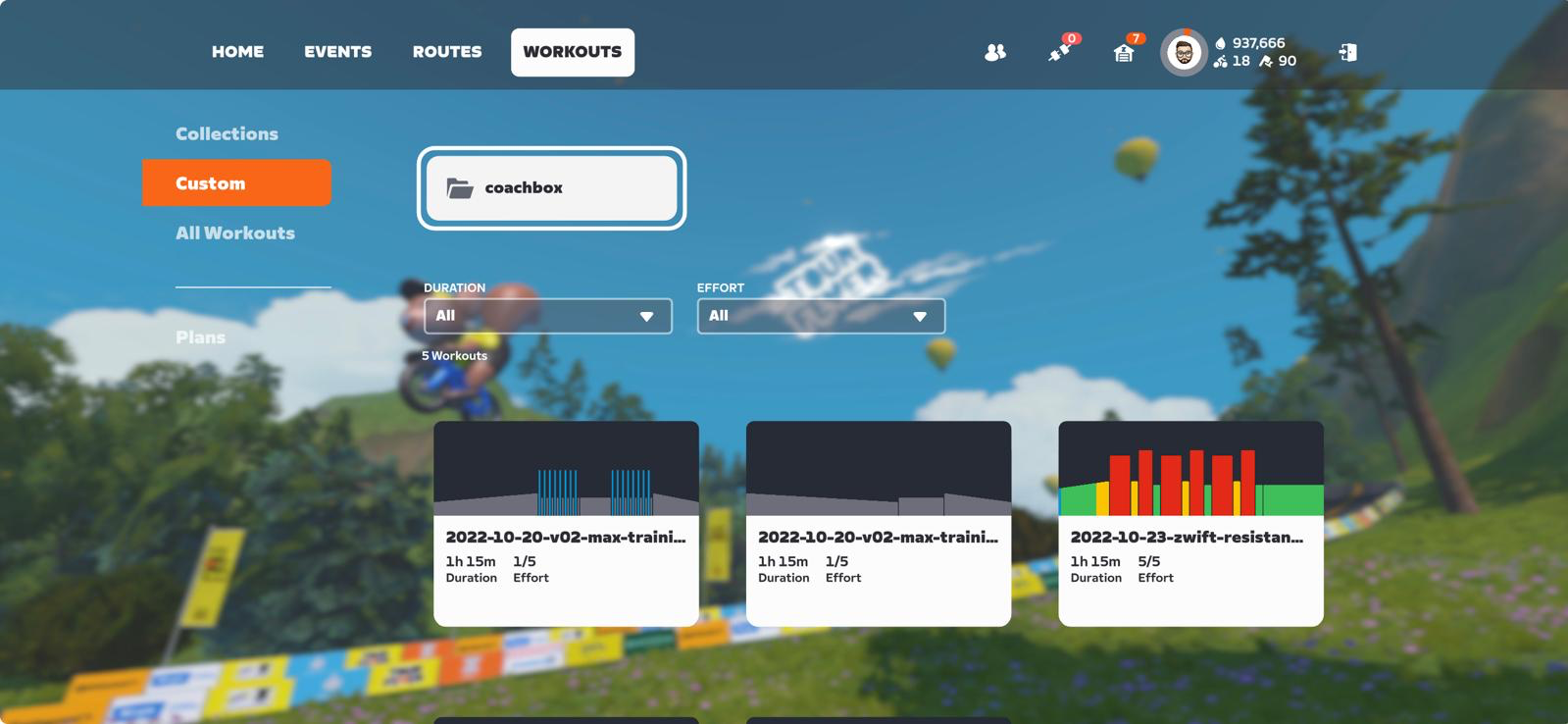
Planned workouts push to Zwift. Coachbox sends your next upcoming cycling or running power workout to Zwift and schedules it for its planned day. You can also push one yourself: open the workout and, in the "Planned workout" block, click the Zwift icon next to Export. The workout is named by its date and title, for example "2026-06-30 - Threshold intervals", and appears under Workouts > Custom > coachbox (see below).
Manual export (.zwo file)
If the automatic integration is not available to you yet, export the workout as a .zwo file and import it into Zwift yourself.
How do I export a workout as a .zwo file?
There are two ways to export a workout as a .zwo file.
- Through the workout detail: Open the workout and in the "Planned workout" block, click the "Export" button on the right.
- Through the calendar: Right-click on a workout, and in the contextual menu the option "Export" will be available.
Then in the window that opened, click on the .zwo option to download the file.
Note: If these buttons are not available, the workout was not formatted as an exportable workout or the content of the exportable workout is invalid (e.g., if no blocks were added yet)
Why is the .zwo export option disabled for my workout?
The .zwo export option is only available for power-based workouts for cycling or running. Workouts based on heart rate or speed, and other sports, cannot be exported to .zwo.
How do I import the .zwo file into Zwift for PC/Mac?
Any .zwo files you move to your Documents\Zwift\Workouts\«Numeric Zwift ID» folder will be added to your "custom workouts" the next time you launch the Zwift app.
How to import my .zwo file into Zwift for iPhone/iPad
Currently it is not possible to import .zwo files directly on iPhone/iPad due to hardware limitations, however, you can import the .zwo files to your Zwift account via your computer as explained in the step above.
How to import my .zwo file into Zwift for Apple TV
Currently it is not possible to import .zwo files directly on Apple TV due to hardware limitations, however, you can import the .zwo files to your Zwift account through your computer as explained in the step above.
How do I find the workout in Zwift?
Whether the workout was pushed automatically or imported as a .zwo file, it shows up in the Zwift app under Workouts > Custom > coachbox, as you can see in the image below.